MeetingLens Camera
MeetingLens Camera improves your webcam video on your own PC and sends it to Teams, Zoom and other apps as a virtual camera.

One-time purchase. Free trial available.
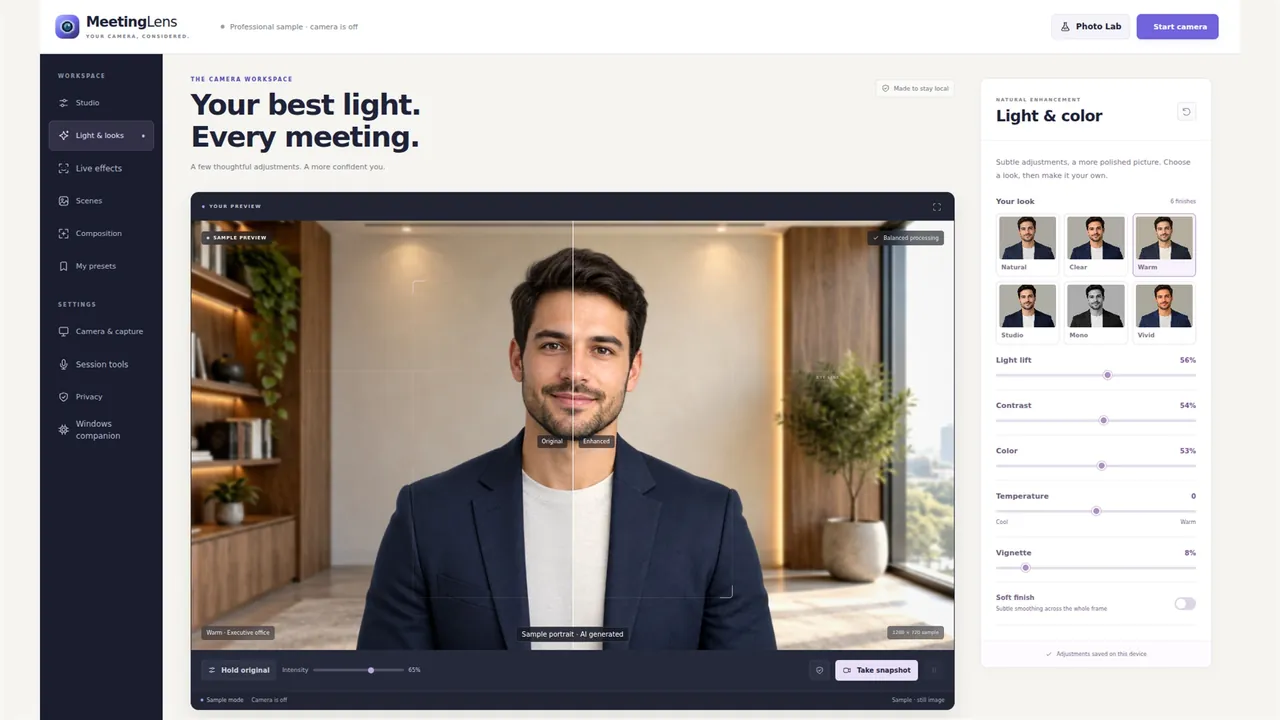
About MeetingLens Camera
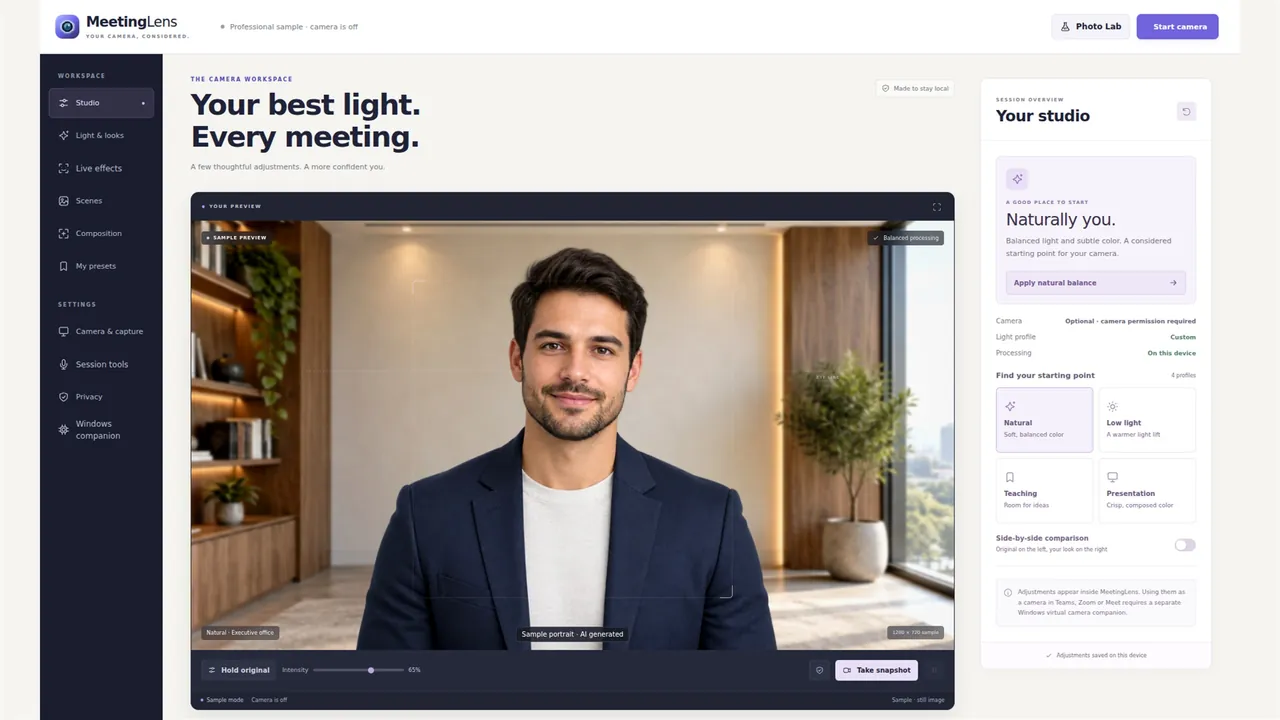
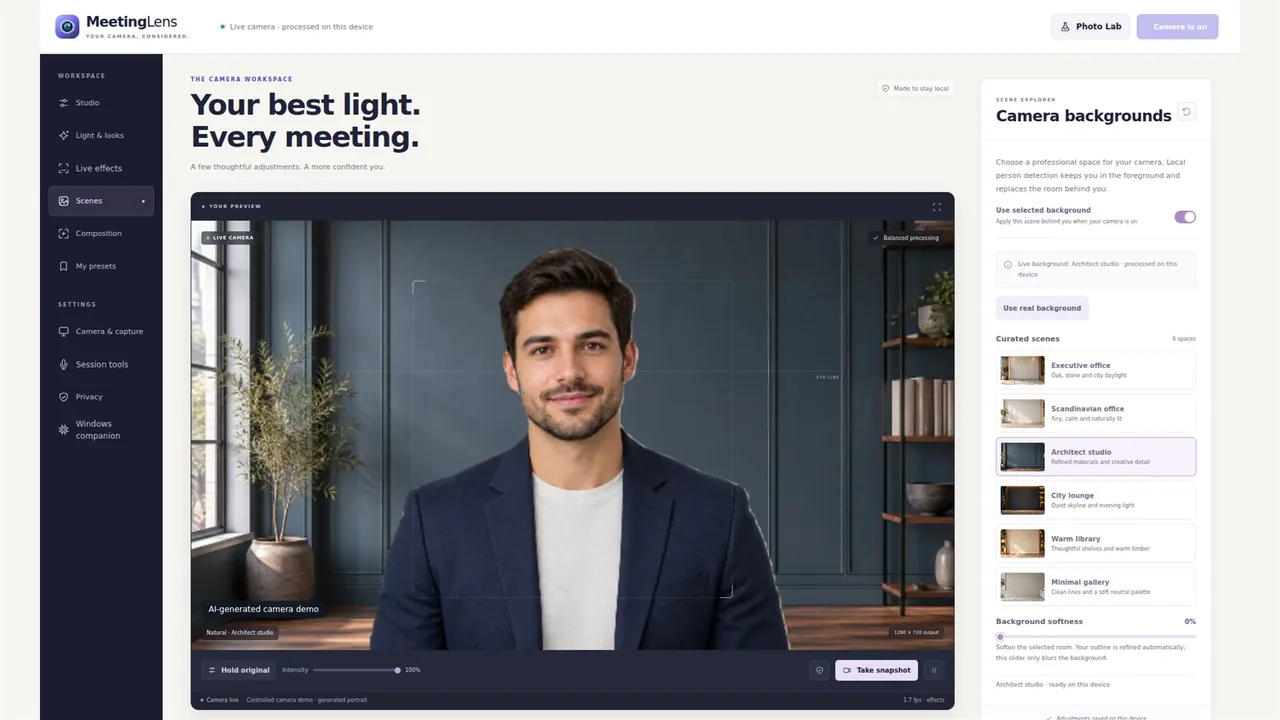
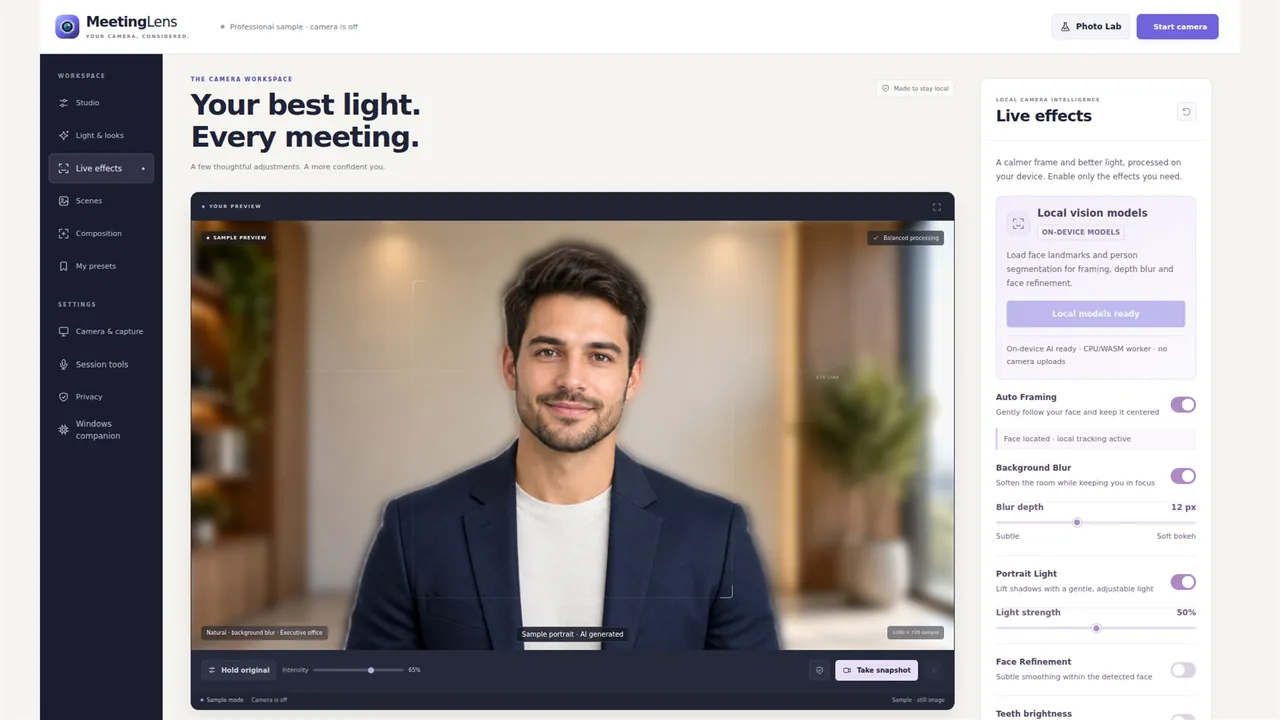
Auto framing follows your face as you move. Replace your background with one of six professional scenes, or blur your real room, and add portrait light with a light touch of skin and teeth refinement. Fine-tune brightness, contrast, saturation and color temperature, and save the looks you like as presets.
To use it, start your camera in MeetingLens, choose a scene or blur, press Start meeting camera and keep the app open. Then pick MeetingLens Virtual Camera as the camera in Teams, Zoom or another app. You can take PNG or JPEG snapshots with an optional timer, and Privacy Shield stops the camera instantly.
Everything runs on your PC and nothing is uploaded. The output is 1280 × 720 at up to about 30 frames per second; results depend on lighting, movement and your hardware, and hair and fingers may not be separated perfectly in every scene. There's no virtual microphone, so keep your normal microphone in the meeting app, and some meeting apps or organization policies may block virtual cameras.
Key features
- Virtual camera for Teams, Zoom and other apps
- Auto framing that follows your face
- Six professional background scenes
- Background blur of your real room
- Portrait light, with light skin and teeth refinement
- Brightness, contrast, saturation and color temperature controls
- Save and reuse favorite settings as presets
- PNG or JPEG snapshots with an optional timer
- Privacy Shield stops the camera instantly
- Processed on your PC; nothing is uploaded
Who it's for
Anyone who joins video calls on Windows and wants a cleaner, better-lit picture without sending their camera to the cloud.